
A Bill of Quantities (BOQ) is the undeniable backbone of any construction estimate. Whether you are bidding for a massive government tender or managing a residential build, preparing it manually in Excel can be incredibly time-consuming and dangerously error-prone. That’s exactly why having a ready-made boq format in excel free download with formula is an absolute game-changer for civil engineers, contractors, and quantity surveying (QS) professionals across India.
In my experience preparing BOQs for over 100+ projects—ranging from small residential complexes to large-scale commercial structures—a well-structured Excel template can literally save you hours of manual calculation. I’ve seen many engineers struggle with generic templates that immediately break when they add a new row. Many search online for a “boq format in excel free download with formula,” but unfortunately, not all free templates are reliable. Some lack fundamental mathematical formulas, ignore GST calculations, or fail to provide section-wise summaries, which ultimately leads to disastrous mistakes in tenders and project budgets.
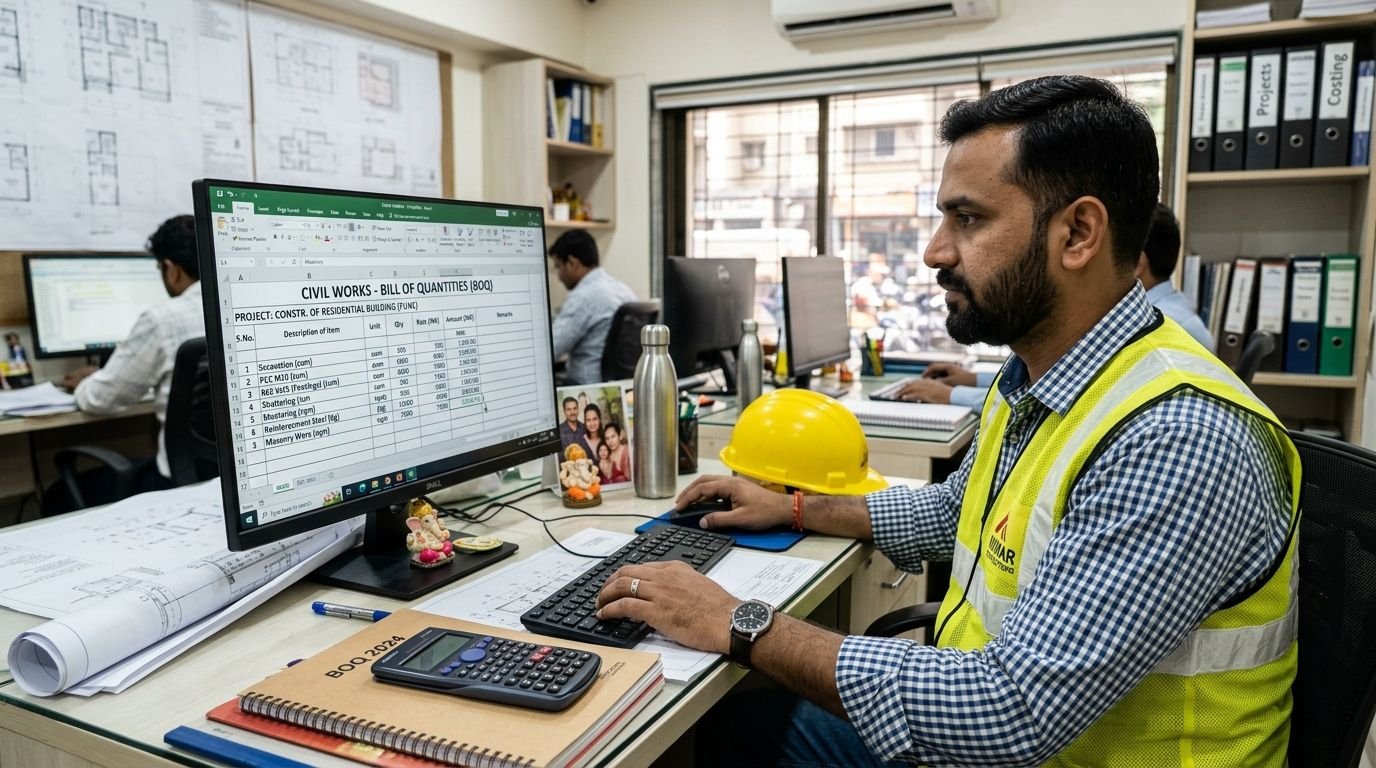
As per standard quantity surveying practices, such as those outlined in the RICS guidelines for the measurement of building works, a BOQ must transparently define what work is included, how it is measured, and how it is priced, all strictly based on project drawings and specifications.
At Construction Estimator India, we understand this struggle intimately. By the end of this comprehensive guide, you will understand exactly what a robust BOQ Excel format looks like, how to build one yourself with the right formulas, where to download reliable templates (both free and paid), and how to avoid the most common estimation pitfalls.
What Is a BOQ Format in Excel?
A BOQ (Bill of Quantities) format in Excel is a meticulously structured spreadsheet that lists all the required materials, labor, and specific work items for a construction project. It pairs these descriptions with their corresponding quantities, unit rates, and total projected costs. Instead of calculating these values on a notepad or a basic calculator, an Excel BOQ uses embedded formulas to automatically generate totals, drastically reducing human error.
To be considered professional and functional, standard columns in any bill of quantities format in Excel with formula must include:
-
Sl. No. (Serial Number): To keep track of the sheer volume of line items.
-
Description of Item: A detailed explanation of the work. You shouldn’t just write “Concrete.” You must specify “Providing and laying M25 grade RCC for columns including compaction and curing.”
-
Unit: The unit of measurement as per Indian Standards (IS 1200). Common units include cubic meters (cum), square meters (sqm), running meters (rm), kilograms (kg), or numbers (nos.).
-
Quantity: The accurately measured quantity extracted from the architectural and structural drawings.
-
Rate (₹): The unit rate, which generally includes the cost of material, labor, machinery, and sometimes overheads (if not calculated separately at the end).
-
Amount (₹): This column is auto-calculated using a formula (Quantity × Rate).
-
Remarks: A crucial space for referencing drawing numbers, specific brand requirements, or tender clauses.
However, a basic list is not enough for modern construction. A truly superior construction BOQ template Excel India also seamlessly integrates:
-
Section-wise Subtotals: Grouping costs by trades like Civil, Electrical, Plumbing, and HVAC.
-
Overhead, Profit, and Contingency: Automatic percentage-based calculations applied to the base cost.
-
GST Calculations: Compliance is mandatory. Most construction works in India attract 18% GST, which needs to be calculated accurately on the final taxable amount.
-
Grand Total: A neatly formatted final figure that represents the total estimated project cost.
While you certainly can build this entirely from scratch, utilizing a pre-built template allows you to focus on accurate measurement rather than formatting cells.
Step-by-Step Guide to Create BOQ Format in Excel with Formula
If you want to understand the mechanics behind a professional BOQ, building one from scratch is a fantastic exercise. Here is my step-by-step approach to creating a functional, automated BOQ.
Step 1: Open Excel and Set Up Your Workbook
-
Open Microsoft Excel (or Google Sheets, though Excel is preferred for heavy tender files).
-
Create a brand new file and immediately save it with a clear naming convention, such as
ProjectName_BOQ_v1.xlsx. -
Set up your sheets. A professional QS never uses just one sheet. Create three distinct tabs:
-
BOQ Main: This is where the exhaustive item-wise breakdown will live.
-
Summary: A high-level overview for clients or management to see trade-wise totals.
-
Rates: (Optional but recommended) A backend sheet for rate analysis to feed your main BOQ.
-
Step 2: Design the Core Columns
Navigate to your BOQ Main sheet. Let’s set up the header row. In Row 1 (from cell A1 to G1), type the following headers:
-
A1: Item No.
-
B1: Description of Work
-
C1: Unit
-
D1: Quantity
-
E1: Rate (₹)
-
F1: Amount (₹)
-
G1: Remarks
Pro Tip: Format Row 1 strictly. Make the text bold, center-align the headers, and apply a distinct background color (like a dark blue with white text) to separate it from the data. Select columns D, E, and F and align the text to the right, as numerical data is easier to read this way.
Step 3: Add Formulas for Amounts
This is where the automation begins. You want your BOQ to do the heavy lifting.
-
Click on cell F2 (the first row where data will be entered under “Amount”).
-
Enter the multiplication formula:
=D2*E2 -
Press Enter. It will currently show 0 (or a dash) since D2 and E2 are empty.
-
Click on the bottom-right corner of cell F2 (the fill handle) and physically drag this formula down to row 100 (or however many rows you anticipate needing).
-
Select column F entirely. Right-click, go to Format Cells, choose Currency, set the symbol to ₹ (Rupee), and restrict decimal places to two.
Step 4: Add Section-Wise Subtotals
A massive list of 300 items is unreadable. You must group items into logical sections (e.g., Earthwork, Concrete Work, Brickwork, Plastering, Painting).
-
After listing all your Earthwork items (say, from row 2 to row 10), leave row 11 for the subtotal.
-
In cell B11, write “Total for Earthwork”.
-
In cell F11, use the SUM formula:
=SUM(F2:F10) -
Bold this entire row and add a top and bottom border to make it visually pop out as a subtotal. Repeat this process for every subsequent section.
Step 5: Include Overhead, Profit, and GST
Once all your civil, electrical, and plumbing sections are subtotaled, you need to calculate the grand total including markups and taxes. At the very bottom of your BOQ (let’s say row 150 is your last subtotal):
-
Total Base Cost: In cell F155, sum up all your section subtotals. Example:
=F11+F30+F55... -
Contractor’s Profit & Overhead (e.g., 15%): In cell B156, write “Add: Contractor Profit & Overhead @ 15%”. In cell F156, calculate it:
=F155*0.15 -
Subtotal before Tax: In cell F157, write
=F155+F156 -
GST (18%): In cell B158, write “Add: GST @ 18%”. In cell F158, calculate:
=F157*0.18 -
Grand Total: In cell B159, write “GRAND TOTAL PROJECT COST“. In cell F159, write
=F157+F158. Bold this heavily.
(Adjust the specific percentages based on your exact project requirements or tender stipulations).
Step 6: Add a Summary Sheet
Clients rarely want to read a 20-page BOQ immediately; they want the bottom line.
-
Go to the Summary tab.
-
Create a simple table with “Description” and “Amount”.
-
Instead of typing the amounts manually, link them dynamically. Click the cell where you want the Civil Total, type
=, then navigate to the BOQ Main sheet and click on the cell containing the Civil Subtotal, and hit Enter. -
Do the same for the Grand Total. If you change a single quantity in the main sheet, your summary will automatically update.
Step 7: Format and Protect Your Template
The biggest danger of sharing a BOQ format in Excel is that someone will accidentally type over a formula, breaking the entire sheet.
-
Freeze Panes: Go to
View > Freeze Panes > Freeze Top Rowso your headers stay visible when scrolling down massive item lists. -
Protect Formulas:
-
Select the entire worksheet (Ctrl+A). Right-click >
Format Cells>Protectiontab. Uncheck “Locked”. Click OK. -
Now, selectively highlight only the cells that contain formulas (like the Amount column and all Subtotal rows). Right-click >
Format Cells>Protectiontab. Check “Locked”. -
Finally, go to
Review > Protect Sheet. You can add a password if you wish. Now, users can only enter data into the Quantity and Rate columns without destroying your automation.
-
(Note: If you feel overwhelmed by these steps, our premium templates at Construction Estimator India already have all this formatting and protection built-in by default).
Key Excel Formulas Used in BOQ Templates
If you are customizing your own civil BOQ Excel sheet free download, you must be intimately familiar with the core syntax. Excel is powerful, but it relies on exact logic. If you need a deeper dive into spreadsheet logic, Microsoft’s official guide on Excel formulas is an excellent resource.
Here are the non-negotiable formulas every QS uses:
1. Amount Calculation
The most frequently used formula in the sheet.
Syntax:
=Quantity * RateExample in Excel:
=D3*E3Why it matters: It ensures that every single line item is accurately priced without manual calculator errors.
2. Subtotal for Sections
Used at the end of every trade category.
Syntax:
=SUM(StartCell:EndCell)Example in Excel:
=SUM(F3:F19)Why it matters: If you just use
+ (e.g., =F3+F4+F5...), adding a new row in the middle will break the formula. SUM dynamically includes new rows inserted within the range.3. Overhead and Profit Margins
Contractors need to make money and cover site expenses.
Syntax:
=BaseCost * PercentageExample in Excel:
=F150*0.15 (for a combined 15% OHP).Why it matters: It separates the pure cost of execution from the business margins, allowing for easier negotiation.
4. GST Calculation
Taxes in India frequently change, but currently, 18% is standard for most civil works.
Syntax:
=TaxableAmount * 0.18Why it matters: Tender authorities will instantly reject a bid if the tax calculations are handled incorrectly or applied to the wrong base figure.
5. Conditional Formatting (Advanced)
Example: Highlighting items where the total cost exceeds ₹1,00,000.
Why it matters: It allows the project manager to instantly identify high-value items that require strict cost control and precise measurement on site.
Free vs Paid BOQ Excel Templates – What Should You Choose?
When scouring the internet for a “boq format in excel free download with formula,” you will invariably encounter a crossroads: do you download a free template from a blog, or do you invest a small amount in a professional, paid template? Let’s break down the reality of both.
| Feature | Free BOQ Templates | Paid Professional Templates (CEI) |
| Cost | ₹0 | ₹99 – ₹299 (One-time small fee) |
| Formula Automation | Often basic (only row amounts). | Fully automated (Amounts, Subtotals, OHP, GST). |
| IS 1200 / CPWD Compliance | Rarely compliant or standardized. | Built specifically around Indian standards. |
| Multi-Trade Support | Usually a single generic sheet. | Multiple dedicated sheets (Civil, MEP, Summary). |
| Data Protection | Unprotected; formulas easily break. | Formula cells are locked to prevent accidental deletion. |
| Support & Updates | None. You are on your own. | Dedicated support and updated formats. |
Free BOQ Templates
Pros: They are excellent for engineering students doing academic projects, or small-time builders executing minor renovations where strict tendering rules do not apply.
Cons: In my professional experience, relying on a free template for a ₹50 Lakh+ project is a massive risk. Free templates often lack proper GST integration. When you insert a new row, the grand total formula often fails to update, meaning you might unknowingly underbid a project by lakhs of rupees.
Sources for Free Templates: You can find basic educational templates on resources like SiteSetu or through various QS professionals sharing basic files on LinkedIn.
Paid Professional Templates
Pros: When you purchase a template from a dedicated platform like Construction Estimator India, you aren’t just buying an Excel file; you are buying peace of mind. Our templates are rigorously stress-tested. They are tender-ready, fully compliant with Indian PWD/CPWD norms, and structured to handle hundreds of line items without lagging or breaking.
Cons: It costs the price of a cup of coffee.
For a professional, tender-ready spreadsheet with robust auto-calculations and strict GST compliance, you can directly download our premium bill of quantities Excel template at just ₹99. We also offer highly specialized templates, including a dedicated BOQ format for civil work and the absolute best BOQ Excel sheet designed explicitly for building construction in India.
Where to Download BOQ Format in Excel with Formula
If you are ready to get your hands on a template, here are the most reliable avenues available to Indian construction professionals in 2025-2026:
1. Construction Estimator India (Highly Recommended)
We offer the most comprehensive, stress-tested BOQ Excel templates in the market.
-
Features: Flawless auto-calculations for amounts, complex section-wise subtotals, overhead, profit margins, and dynamic GST. Multiple integrated sheets for civil, electrical, plumbing, and a master executive summary.
-
Compliance: Structured similarly to the CPWD standard specifications and IS 1200 norms.
-
Access: Available at nominal rates (₹99–299) with instant digital download and lifetime access. Browse our store to find the exact fit for your next tender.
2. SiteSetu Free Templates
If you have zero budget, SiteSetu provides a decent free BOQ format in Excel. It groups sections reasonably well and touches on GST. It is a fantastic starting point for students or fresh site engineers who just want to practice entering data.
3. Government and Professional Resources
For standard item descriptions and approved formats, government bodies like the Central Public Works Department (CPWD) frequently publish standard BOQ structures for public works. While they usually publish these in PDF format, the structural logic provided is invaluable for structuring your own Excel file.
4. Educational Blogs and LinkedIn
Many senior Quantity Surveyors generously share basic BOQ Excel templates via LinkedIn posts or medium articles. While these are great for learning, the quality varies wildly. Always thoroughly audit the formulas of a file downloaded from social media before using it to submit a binding financial bid.
Common Mistakes in BOQ Excel Templates (and How to Avoid Them)
Even with a great BOQ Excel template free download, user error can lead to disastrous financial consequences. Here are the most common mistakes I see engineers make, and how you can avoid them:
-
Missing or Incorrect Formulas: The most dangerous mistake. Users accidentally type a hard number (e.g., typing “5000” in the Amount column) instead of ensuring the cell reads
=Quantity*Rate. If the quantity later changes to reflect revised drawings, the amount remains stubbornly at 5000, causing massive budget shortfalls. -
No Section-Wise Subtotals: Dumping 400 items into one continuous list makes the BOQ impossible to audit. It makes it incredibly hard to track costs by trade. You won’t know if your civil works are over budget or if the plumbing is too expensive. Always group and subtotal.
-
Ignoring Overhead, Profit, and GST: Many free templates simply sum up the material and labor cost and call it the “Grand Total.” If you submit this for a tender, you will have to pay the 18% GST out of your own pocket, completely wiping out any profit and causing severe cash flow issues.
-
Unprotected Formula Cells: Sending an unprotected BOQ to a junior engineer to fill out quantities is a recipe for disaster. They will accidentally hit backspace on a crucial summary formula. Always lock your formula cells.
-
Poor Formatting: A BOQ is a financial document. If there is no currency formatting, no bolded subtotals, and frozen header rows, the sheet becomes an unreadable wall of numbers. A poorly formatted BOQ screams “amateur” to clients and architects.
-
Using Generic Free Templates for Strict Tenders: Government tenders often have very specific formatting requirements. Trying to wedge your data into a rigid, badly designed free template can lead to technical rejection of your bid.
-
Not Validating Quantities and Rates: An Excel formula only calculates the numbers you give it. If you accidentally input 1000 cubic meters instead of 10, the template will dutifully multiply it, leading to a wildly unrealistic total. Always do a “sanity check” on your final numbers.
FAQs
Here are some of the most common questions we receive regarding BOQ preparation in India.
What is a BOQ format in Excel?
A BOQ (Bill of Quantities) format in Excel is a structured digital spreadsheet used in construction to list all required work items, their measurements, unit rates, and total costs, utilizing formulas to automate the mathematical calculations.
Can I download a BOQ format in Excel for free with formulas?
Yes. You can find a basic boq format in excel free download with formula on educational blogs or sites like SiteSetu. However, for accuracy, complex tendering, and proper GST compliance, a paid professional template is highly recommended.
How do I create a BOQ in Excel with auto-calculations?
You create columns for Item, Description, Unit, Quantity, Rate, and Amount. In the Amount column, use the multiplication formula (Quantity × Rate). Then, use the
SUM formula at the bottom of sections to auto-calculate totals, followed by percentage formulas for taxes and overheads.What formulas are used in a BOQ Excel sheet?
The core formulas are basic arithmetic: Multiplication (
=D2*E2) for line item amounts, Addition/Summation (=SUM(F2:F50)) for subtotals, and Multiplication for percentages (=Total*0.18) for GST and profit margins.Are free BOQ templates reliable for government tenders?
Generally, no. Free templates often lack the rigorous formatting, locked formula protection, and exact structural compliance required by CPWD or state PWD norms. Using them for serious tenders increases the risk of calculation errors and bid rejection.
Where can I download a professional BOQ Excel template in India?
You can download professional, standard-compliant, and fully automated BOQ Excel templates directly from Construction Estimator India. They are affordably priced and instantly downloadable.
How do I protect formulas in my BOQ Excel sheet?
First, unlock all cells in the sheet. Then, highlight only the cells containing formulas. Go to Format Cells > Protection and check “Locked”. Finally, go to the Review tab on the Excel ribbon and click “Protect Sheet”.
Conclusion
A well-structured boq format in excel free download with formula is absolutely essential for accurate, efficient, and professional construction cost estimation. Attempting to manage a modern construction project without a formula-driven spreadsheet is simply inviting financial disaster.
While free templates undeniably exist and serve a purpose for students and minor works, they frequently lack the robust automation, vital GST compliance, and tender-ready structural features required in the real world. For serious contractors, engineers, and builders, investing a small amount in a paid, professional template is arguably the most cost-effective decision you can make, saving hours of frustration and preventing costly calculation errors.
By following the step-by-step guide outlined in this article, you are now equipped to create your very own dynamic BOQ Excel sheet from scratch. Always remember the golden rules: use proper
SUM and multiplication formulas, strictly organize your work with section-wise subtotals, integrate current GST calculations, and invariably protect your formula cells before sharing the document.If you want to skip the tedious setup process and jump straight into accurate estimation, we invite you to explore and download Construction Estimator India’s premium, professional BOQ Excel templates. Designed by experts for the Indian construction industry, our templates guarantee instant, error-free BOQ preparation every single time.